HomeHardwareFeaturesMicrosoft Flight Simulator
What kind of performance to expect from Microsoft Flight Simulator’s recommended PC requirementsThrottle engaged
Throttle engaged
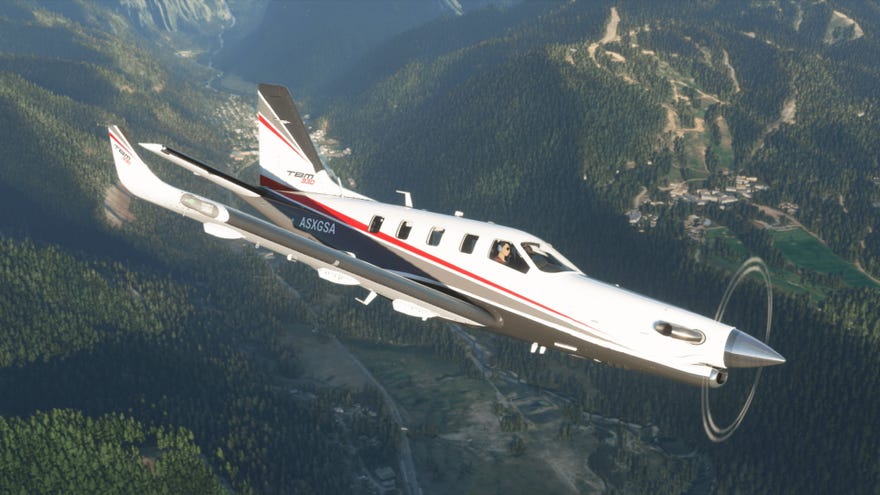
Microsoft Flight Simulatoris finally ready for boarding on PC, but if you’re not sure whether your PC has the stomach for soaring through Asobo Studio’s gorgeous new flight sim and its many hundreds ofphotorealistic cities, then I’m here to help. I’ve been testing the game on its recommended PC requirements today, seeing exactly what kind of performance you can get from a relatively modest PC build.
I’ll be upfront.Microsoft Flight Simulatoris one of those games that’s definitely built with future tech in mind. As our friends atDigital Foundryhave previously reported, even today’s best hardware will struggle to run this game on max settings at higher resolutions, so it’s important to keep expectations in check when you’re configuring the game’s many, many graphics settings. Unlike other big blockbuster games that have come out recently on PC, Ultra really does mean something here, so don’t be put out if you can’t automatically crank everything up to eleven and get a smooth 60fps.
To see this content please enable targeting cookies.Manage cookie settings
In short, it’s an absolute beast of a game on PC right now, but it’s also one that’s intended to grow and evolve over time as Microsoft and Asobo Studio continue to expand and add to it. Indeed, Asobo have told RPS that they “intend to stay on this journey for the next decade” as they work to improve the game’s simulation. “Our vision is that this is an ever-evolving platform,” they said. “Our Earth is always changing and so will we. We’ll keep updating the world simulation. We’ll continue to get better and more live data, and we will continue growing and expanding the simulation for many years to come.”
So don’t worry too much if your PC can’t quite manage Flight Simulator today, as there will always be that PC of tomorrow that will.
Microsoft Flight Simulator PC requirements
Until the time comes for your next PC upgrade, though, let’s take a closer look at what kind of performance you can get in the here and now. As a reminder, here areMicrosoft Flight Simulator’s PC requirements, which are split into Minimum, Recommended and Ideal specifications.
Unfortunately, the official PC requirements don’t give any indication of what kind of performance you can expect from each of these specs, or indeed what resolution they’re targeting. So I thought I’d do the hard work for you and find out. I’ll be focusing mainly on the Recommended spec in this article, as that’s the closest one to my own test PC.
Microsoft Flight Simulator Minimum PC Requirements:
CPU:Intel Core i5 4460 / AMD Ryzen 3 1200RAM:8GBGPU:Nvidia GeForce GTX 770 / AMD Radeon RX 570VRAM:2GBStorage:150GBBandwidth:5 MbpsOS:Windows 10 Nov 2019 update (1909)
Microsoft Flight Simulator Recommended PC Requirements:
CPU:Intel Core i5-8400 / AMD Ryzen 5 1550XRAM:16GBGPU:Nvidia GeForce GTX 970 / AMD Radeon RX 590VRAM:4GBStorage:150GBBandwidth:20 MbpsOS:Windows 10 Nov 2019 update (1909)
Microsoft Flight Simulator Ideal PC Requirements:
CPU:Intel Core i7-9800X / AMD Ryzen 7 Pro 2700XRAM:32GBGPU:Nvidia GeForce RTX 2080 / AMD Radeon VIIVRAM:8GBStorage:150GB SSDBandwidth:50 MbpsOS:Windows 10 Nov 2019 update (1909)
Indeed, my Intel Core i5-8600K processor is just above the recommended Intel CPU in Microsoft Flight Simulator’s recommended requirements, and I’ve also got 16GB of RAM clocked at their standard speed of 2133MHz inside my PC as well. As for my home internet connection, I recorded a download speed of around 35 Mbps this morning, according to Speedtest.net, which once again meets the recommended but not ideal PC requirements.
Microsoft Flight Simulator PC graphics settings
Before we get started, let’s take a look at what Microsoft Flight Simulator looks like in practice. There are four graphics presets to choose from in the Graphics tab of the General settings menu:Low-End, Medium, High-End and Ultra, and there are loads of individual settings within them, covering everything from big important things such as Terrain Level Of Detail, Buildings and Trees to the tiny minutiae of Lens Flare, Windshield Effects and Water Waves.
Here’s what they all look like in practice (click to enlarge and all that):
Low-endMediumHigh-endUltraAs you can hopefully see, Low-end has some quite low-res-looking mountain textures in there, and buildings down below look quite flat and undefined. The clouds are also quite simple in terms of detail and overall lighting, but this quickly improves when you step up to Medium. The clouds look thicker and fluffier, and the town looks more built-up. Mountains also look less like someone’s smeared a paint brush over them, too.
Low-endMediumHigh-endUltra
Low-end
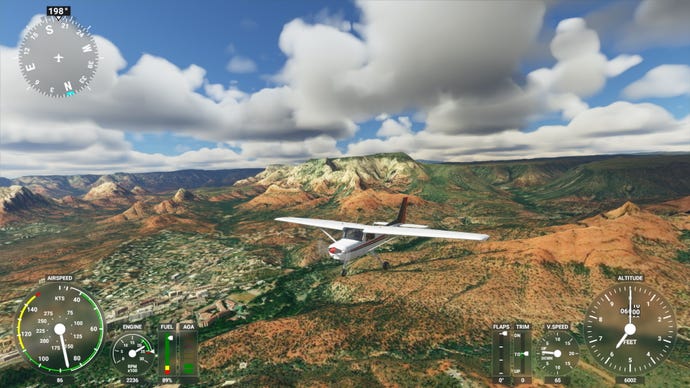
Medium
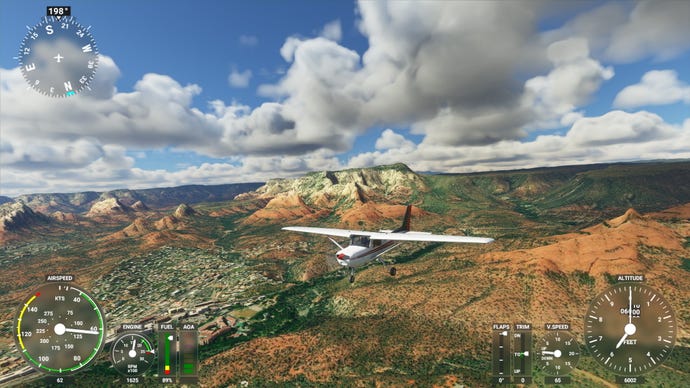
High-end
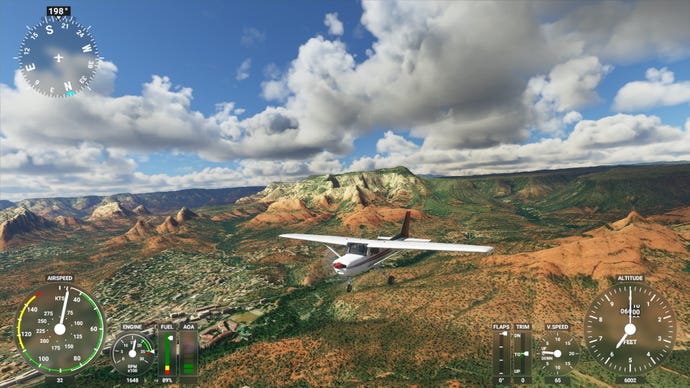
Ultra
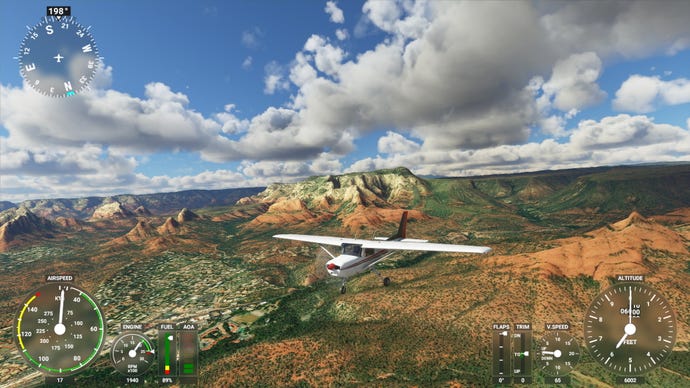
High-end, meanwhile, builds on this further, adding in puffier, wispier-looking clouds and a bit more ground-detail in the buildings and shadows. Ultra, on the other hand, adds in loads more lighting effects, giving the mountains in the background noticeably more shadow detail than High-end, as well as even prettier clouds.
Microsoft Flight Simulator PC performance
Alas, if your PC only just about meets the recommended PC requirements for Microsoft Flight Simulator, you’re probably not going to be able to see all that shiny detail unless you dial the resolution right down below 1920x1080. Using the components I outlined above along with my GTX 970, I struggled to get the game running smoothly even onMedium at 1920x1080.
To test the game, I used the first flight training mission as a makeshift, but repeatable benchmark to try and keep conditions the same as much as possible.Insidethe cockpit, I saw an average frame rate of around45fpsas I was flying and looking around from side to side, but this could quickly dive all the way down to 30fps or less if I enabled the free camera mode.
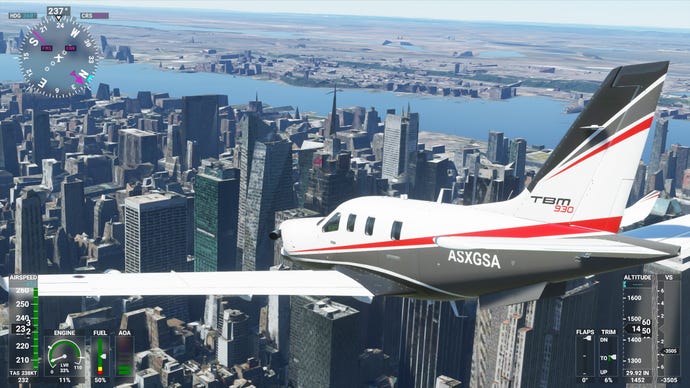
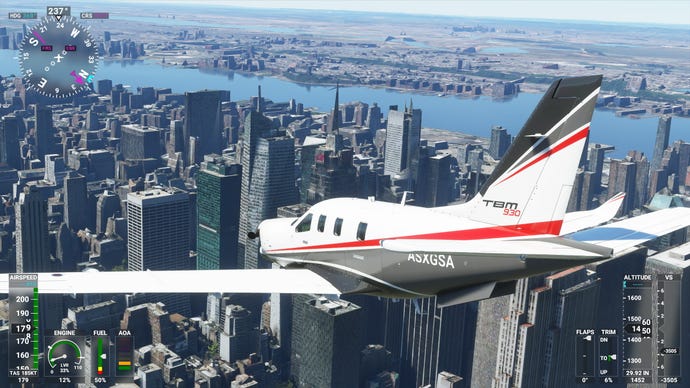
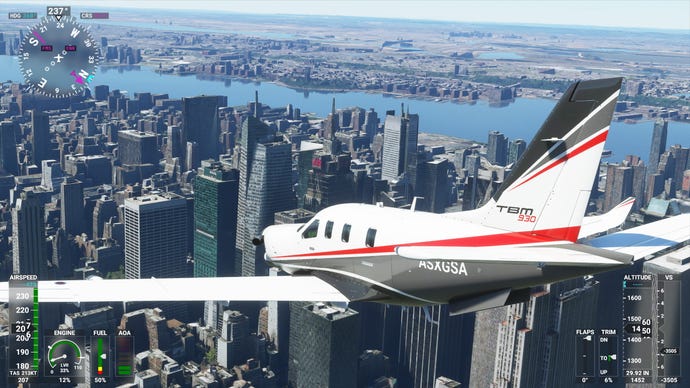
Low-endMediumHigh-endUltraThat’s what you’re likely to get with the recommended PC spec if you stick with the default presets in Microsoft Flight Simulator, but you can always fiddle about with the settings a bit more to help give your frame rate a bit of a boost. The easiest way to pump up those numbers on the GTX 970 is tolower the Render Scale. This will render the game at a percentage of your target resolution (in this case, 1920x1080), before upscaling it back to said target, which helps take some of the strain off your GPU without having to settle for a lower resolution.
Low-endMediumHigh-endUltra
Low-end
Medium
High-end
Ultra
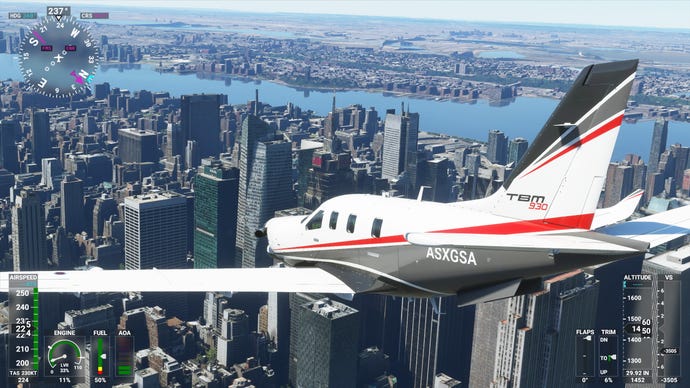
I found that setting the Render Scale to 90 was more than enough to get the game feeling a lot smoother, for example, as 90% of 1920x1080 still equates to 1728x972, which is higher than making do with the next option down of 1600x900. This bumped my average frame rate up to a muchsmoother 50fps on Medium, and edged itcloser to 40fps on High-end.
The latter still isn’t ideal, but with Low-end only just about managing a smooth 60fps while you’re airborne (it gets noticeably choppier the closer you get to the ground), there’s really no other easy way to boost those numbers without dropping most things right down to that bottom preset.
That’s not to say that simply sticking in a higher-end graphics card on a similarly-specced PC won’t dramatically improve your experience, of course. When I swapped out my GTX 970 for anRTX 2060, for example, I was able to hit a silky90fps on Medium at 1920x1080and around70fps on High-endin that very same training flight.
However, even the RTX 2060 wasn’t quite able to maintain a smooth 60fps on the game’s Ultra preset at 1080p, as I only saw an average frame rate between 50-55fps at 1080p while airborne. That’s still perfectly playable, of course, but it was still prone to getting a little jerky at times when I tried approaching the city.
An RTX 2060-grade graphics card is probably the minimum kind of GPU you’ll need to play the game at 2560x1440 with this kind of PC spec, too. While High-end was just about playable at around 50fps on my PC, Medium was the definite sweet spot, averaging 60fps while airborne only dropping to around 45fps when I got closer to cities and landmarks.
The planes always look immaculate in Microsoft Flight Simulator, regardless of graphics preset, but you’ll need a hefty PC indeed to get the world looking just as gorgeous…
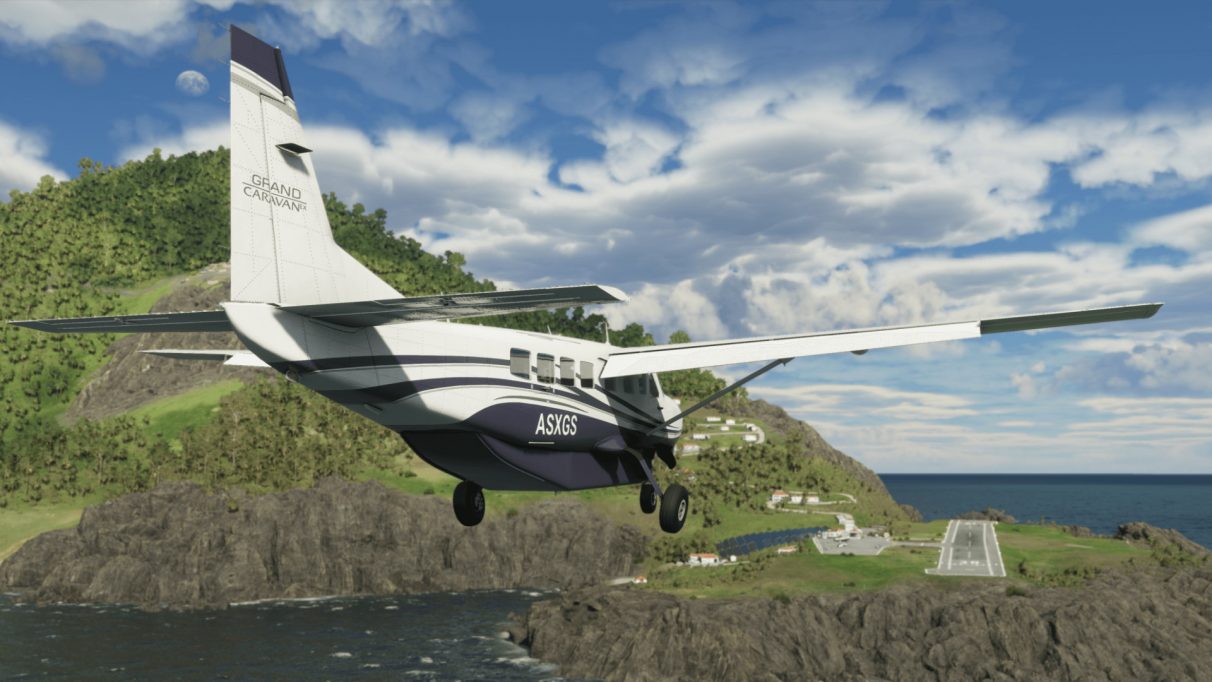
So, there’s a very quick look at how Microsoft Flight Simulator runs on its recommended PC requirements, which will hopefully give you a better idea about what to expect from your own PC if you decide to take it out for a spin. Having a more powerful graphics card inside your system will definitely help when it comes to overall performance if, like me, you only have a relatively mid-tier CPU and RAM combo, but this is still clearly quite the frame rate hog even at fairly modest resolution settings. As a result, I’d advise going in with tempered expectations right now. Start at the bottom and work your way up that graphics settings menu until you find something comfortable. Don’t go in top-down, because otherwise you might have to deploy your in-flight sick bag.
