HomeHardwareFeatures
Resident Evil 4 remake: PC performance, system requirements and the best settings to useWhaddya settin’?
Whaddya settin’?
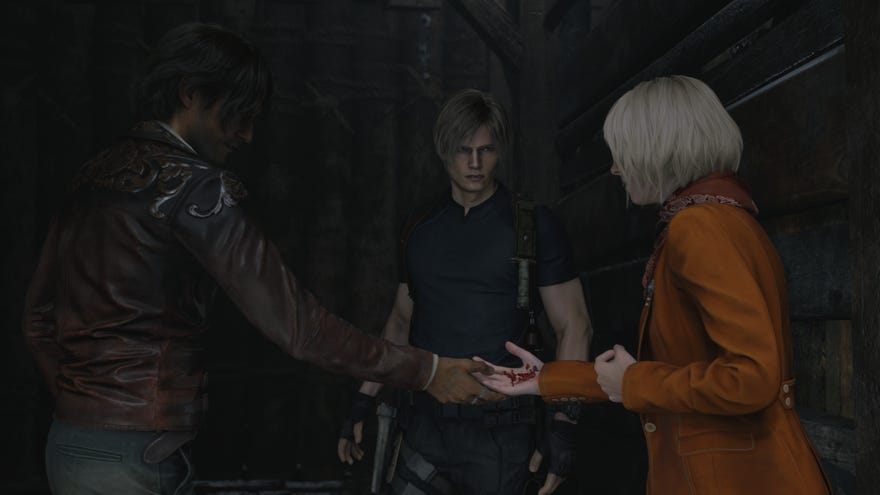
Unlike Liam, I started on theResident Evil 4 remakewithout the roundhousing know-how of someone that repeatedly beat the 2005 original. Still, twelve maulings, three beheadings, and one chainsaw disembowelment later, I’ve got enough of a handle on Leon S. Kennedy’s disappointing Spanish holiday to help you get the most out of the new model’s PC performance. Including a guide to its best settings, which can especially help on lower-end rigs.
Resident Evil 4’s PC version has plenty going for it: performance is decent and scales well across hardware and screen resolutions, whileAMD FSR 2provides a competent upscaling option that works on any respectable graphics card.Ray tracingis here as well, and although it’s limited to reflections (in contrast to thewider-ranging ray traced effects in Resident Evil Village), it’s also the least FPS-hungry RT implementations I’ve ever seen.
Resident Evil 4 Remake: 17 Exciting New DetailsLiam spotted 17 exciting new details in a recent preview session for Resident Evil 4 Remake.Watch on YouTube
Resident Evil 4 Remake: 17 Exciting New Details

The graphics presets also have some oddities to them, though fear not, as it’s best to go with a custom settings config anyway. Read on for the full analysis, which focuses on desktop performance; I’ve also knocked together a shorter guide torunning Resident Evil 4 on the Steam Deck, if you’re more interested in handheld horror.
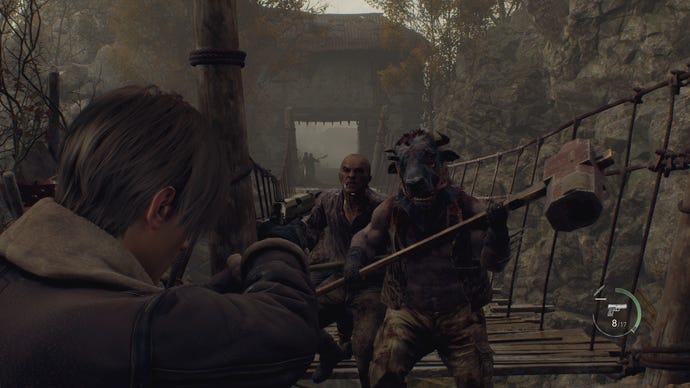
Resident Evil 4 remake: system requirements and PC performance
The official specs don’t include a storage space requirement, strangely enough, though Steam tells me that Resi 4 is currently taking up 54.41GB on my SSD.
Resident Evil 4 remake minimum system requirements
Resident Evil 4 remake recommended system requirements
If you can live with the upscaled look at 1080p, it is indeed a good match for the minimum spec’s GTX 1050 Ti. In my custom benchmark test, I averaged 50fps with this GPU, an Intel Core i5-11600K, and 16GB of RAM. You’ll note the latter two components are above the minimum spec, so 45fps with an older CPU looks like an accurate estimate.
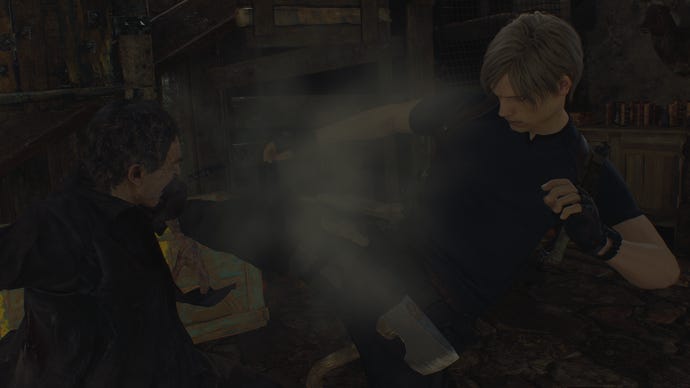
I also tried the GTX 1070, from the recommended spec. At 1080p, this managed a 64fps on the Balanced preset (equivalent to Medium), before revealing another preset peculiarity on the Prioritize Graphics mode. This is supposed to look nicer than Balanced, but it also set FSR 2 to its Quality mode, resulting in a faster 71fps average at the cost of sharpness. Where it gets really bizarre is that in all my subsequent tests on other hardware, Prioritize Graphics didn’t automatically enable FSR at all. I actually think FSR 2, on Quality, is a great addition when playing at 1440p or 4K – but if you insist on sticking to presets, do double-check whether they’ve thrown in upscaling even when it isn’t appropriate.
That’s not to take away from the fact that Resident Evil 4 can easily run well on increasingly geriatric GPUs, and if you’ve upgraded to something newer and shinier, performance will get an appropriate boost. My RTX 3070 averaged 93fps at 1440p using Prioritize Graphics, and moving up one step to the Ray Tracing preset only cut this to 86fps. This card can also handle 4K, with the aid of FSR 2: with the latter on Quality mode, I got 66fps on Prioritize Graphics and 62fps on Ray Tracing.
1of3CaptionAttribution
1of3
1of3
1of3
CaptionAttribution
CaptionAttribution
Caption
Attribution
There is one final preset, Max, and this one actually does require some properly beefy graphics power. Or, to be more specific, a whole heap o' VRAM. The highest ray traced reflections setting seems to need over 12GB of video memory, as not only did this setting reliably crash the game on the 8GB RTX 3070, it even did the same on the brand-new, 12GBRTX 4070 Ti. The 24GB RTX 3090, conversely, ran the Max preset just fine.
I don’t see this as a major problem, as the Normal RT reflections setting looks very nearly as good as High does; it’s mainly just another reason to make manual settings changes instead of relying on presets.
There are only other two other potential performance concerns: slight stuttering when entering certain areas, and more sustained FPS drops in scenes with a lot of visual effects. In my experience, the first has been rare enough to live with, and the second has only been truly noteworthy once, in an escape scene that’s absolutely rammed with stormy weather effects and grumpy infected villagers. And even then, it’s never close to unplayable, with even the Steam Deck able to run it around the 40fps mark on low settings. For the most part, Resident Evil 4 on PC balances smooth performance and eye-catching looks rather well.
Resident Evil 4 remake: best settings guide
Resident Evil 4’s best settings therefore lie in a combination of custom tweaks, and I’ve tested every single option to find which you should crank up and which you should tone down. For this, I used the GTX 1070 at 1080p, lowering each individual setting to see which produce the highest framerate gains for the least visual loss. Our starting point is 44fps: the GTX 1070’s average result on the equivalent of the Max preset, except with screen space reflections enabled instead of ray tracing.
1of5CaptionAttribution
1of5
1of5
1of5
CaptionAttribution




CaptionAttribution
Caption
Attribution
Here’s how each setting affects performance, or if you just want to know the recommended settings, have a nice long scroll down.
Cinematics resolution:This, erm, doesn’t impact performance at all, as it only governs the rez of prerendered cutscenes. Your options are 1080p or 4K, so only choose the former if your monitor won’t go higher than 1920x1080.
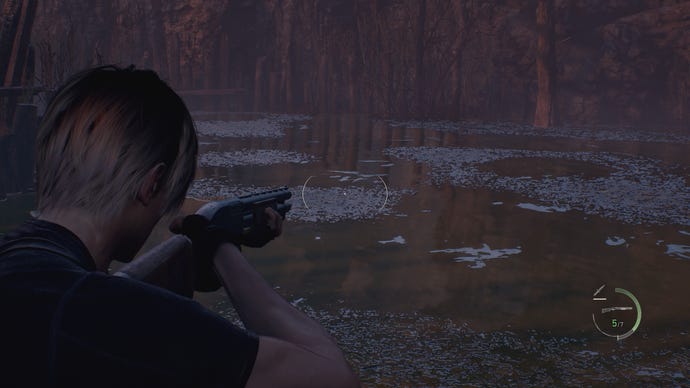
The only downside to using ray tracing when available is this ugly highlighting effect on certain waterbound plant life, though it shows up so infrequently I can’t say it’s a dealbreaker.
This is more noticeable when viewed from certain angles; this tight angle shows the worst of it.
FidelityFX Super Resolution 1:The older, uglier version of FSR that’s also here for some reason. Ignore it – its Ultra Quality setting, equivalent to FSR 2’ s Quality, was only 2fps faster on average and looked much worse.
Anti-Aliasing:The default here is TAA combined with FXAA. You can downgrade to TAA alone, though the performance gain is negligible, and FXAA makes fine details clearer to my eyes.
Texture Filtering:Dropping all the way down to bilinear filtering did net me a higher 47fps average, but overall image quality suffered. Honestly, I think this is fine to leave at its maximum setting, High (ANISO x16).
Shadow Quality:Try dropping this from Max to Mid. I got 49fps from this one change alone, and the quality difference isn’t as wide as you’d think.
Shadow Cache:Leave this on. Disabling it didn’t improve my average FPS at all, and introduced additional stuttering.
Contact Shadows:Resi 4 likes its shadow settings, doesn’t it. I’d leave this one enabled, in most cases, as the performance gain from turning contact shadows off is tiny.
Ambient Occlusion:The game does look very slightly better with either FidelityFX CACAO or SSAO enabled, but turning it off entirely produced a rise up to 50fps. That’s a 14% improvement, which is just too good to leave on the table, and the visuals don’t suffer much if you keep the other shadow settings on mid-to-high levels.
Volumetric Lighting:I can’t, for the life of me, tell the difference between Max and Mid quality here. There are lower options as well, but none of them are faster than Mid, so go with that.
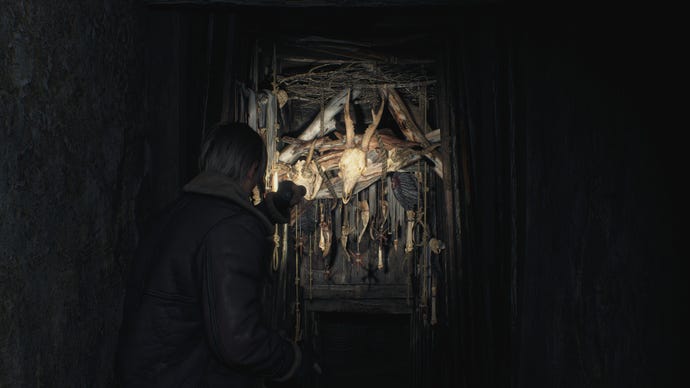
Subsurface Scattering:The good news for Leon’s skincare routine is that disabling subsurface scattering doesn’t help performance at all, so leave it on for max-fidelity bodily tissue.
Hair Strands:Sadly, the same can’t be said for Leon’s profoundly mid-2000s locks. The hair tech is nicely swooshy on High quality, but turning this effect off entirely resulted in a 20% (!) performance improvement on the GTX 1070. Apologies to his barber, but now it’s our turn to cut some hair.
Graphic Dismemberment:This doesn’t affect performance either way, though be warned if you want to use it as a gore filter: there’s still plenty of the pink mist on critical head/limb shots.
Persistent Corpses:No, not the working title ofResident Evil 2, but a setting determining how many enemy bodies will continue to lay in the mud after you’ve defeated a group. The difference between Many and Few is a mere 1fps in the latter’s favour, so to paraphrase a former Prime Minister: let them pile high.
Corpse Physics:Again, there’s only a 1fps difference between the High and Low settings here. You may as well stick with High, especially considering the surprising frequency with which shot/stabbed/kicked Ganados will entertainingly tumble off ledges.
Diverse Enemy Animations:Keeping this enabled will add a bit more character to attacking mobs, and better hide the underlying fact that many of them are just differently skinned versions of the same bloodthirsty lunatic. Disabling them added 2fps to my 44fps average, though I’d rather keep the animations myself.
Rain Quality:This presents a tougher choice. High quality rain looks more subtle, but Low quality gave me a 9% performance gain. I do think the High setting looks sufficiently superior to leave on, but if the recommended settings below still aren’t helping in those stormy scenes, try dropping this as well.
Terrain:Another, altogether less conflicting 9% gain was also mine after turning this off. There is a visual downgrade if you squint, but it didn’t bother me at all.
Lens Distortion:A silly effect that serves no purpose, even cinematic. I turned it off for that, regardless of the teensy bump up to 45fps.
Resource-Intense Lighting Quality:Despite the name, dropping all the way from High to Low only yield 2fps extra. That’s worth having elsewhere but here, there’s a much harsher cut to quality, so it’s best to keep this turned up.
Resource-Intensive Effects Quality:As above, but with a mere 1fps gain instead of 2fps.
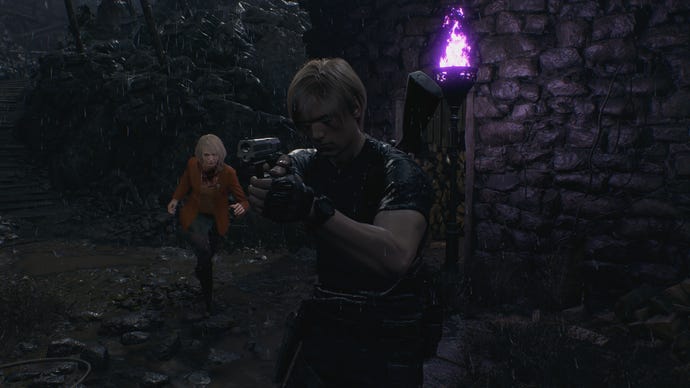
With these settings, my GTX 1070 setup averaged 70fps, making for far smoother monster-slaying than the maxed-out 44fps. That’s even on par with the Prioritize Graphics setting which, as you’ll recall, had the advantage of defaulting to FSR 2 – while also lowering a bunch of settings that we’ve kept on High here.
One modification you could absolutely make, provided you have a compatible GPU, is to add Ray Tracing on Normal quality. This massively upgrades reflections without the painful performance loss you often get from RT effects. And don’t forget that FSR 2 will give a substantial framerate boost, even on Quality mode. 1080p is arguably too low a starting point for upscaling, but it’s ideal for 1440p and 4K, and FSR 2’s Balanced mode looks alright too if you want to go even faster.
