HomeFeaturesLost Ark
Lost Ark system requirements, PC performance and the best settings to useNo flashy tech, but it runs well
No flashy tech, but it runs well

Update!I’ve been playing around with Lost Ark’s final release version, and itruns even smoother in DirectX 11 modethan in DX9; the review build I used for initial testing was locked to the latter. The Very High preset, for instance, averaged 87fps on a GeForce GTX 1050 Ti and 1080p resolution – on the DX9 review build, it averaged 73fps.
Lost Ark defaults to DX11 in the release build so you shouldn’t need to change it manually change it. And, because I’ve been seeing near-identical performance gains from lowering quality as I did in the DX9 build, I’m satisfied that this settings guide still applies. Though Amazon, maybe next time let us try out your game at its best, yeah?
The original article continues below…
Lost Ark: Launch Gameplay TrailerWatch on YouTube
Lost Ark: Launch Gameplay Trailer

In fact, for any halfway modern PC, you can probably just whack on the Very High settings preset and jump straight in. As ever, though, you can get even better performance out of Lost Ark with some choice graphical adjustments, so keep scrollin’ for a guide to the best seetings to use. I tried a few different GPUs in my testing, with a focus on lower-end kit; there are no premium features here, likeray tracing or DLSS, that would demand a premium GeForce RTX or Radeon 6000 series card.
There wasn’t even a working DirectX 11 implementation in the review build I played, though I’ve heard from publishers Amazon Games that DX11 will be available in both the main release and the early access (or “head start”) build that’s launching later today. I’ll revisit Lost Ark to see how DX11 improves it over DX9.
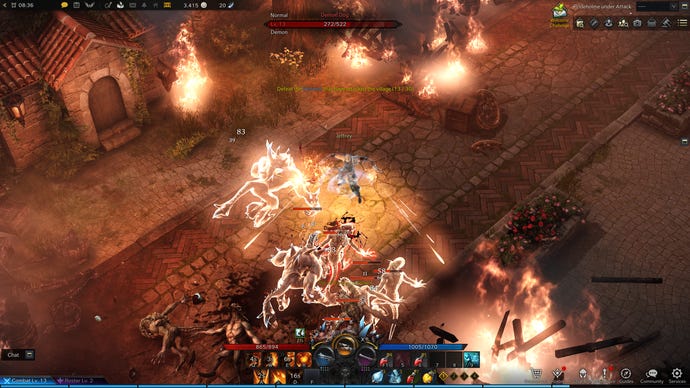
Lost Ark PC requirements and performance
Lost Ark minimum PC specs
Lost Ark recommended PC specs
Even 12-year-old graphics card are along for the ride, and any CPU/GPU combination from more recent memory should see Lost Ark sitting comfortably. Amazon haven’t specified but those recommended specs appear to target 60fps; I slotted a GTX 1050 Ti into my main test PC, which also has an Intel Core i5-11600K and 16GB of RAM, and at 1080p I almost always stayed above 70fps with Very High settings. For 1440p, you can even go lower than the recommended specs: I tried a GTX 1060 at this res and, still using Very High settings, averaged 79fps. In some areas, like taverns and tight caves, that could jump to over 100fps.
Lost Ark scales up nicely too. With an RTX 3070, maxed-out 1440p averaged 142fps, and switching to 4K produced a mostly consistent 90-100fps. The likes of the RTX 2080 and Radeon RX 6800 should, indeed, have no issue.
Fortunately, the rest of the game runs much more stably. There’s still a difference between the biggest outdoor sections and the cosiest interiors, but you’ll most likely be playing at high enough frame rates that it’s not overly noticeable. Besides, Lost Ark’s real mistake?Just like in New World, it won’t let you name a character after Jeff Bezos.

Lame.

Lost Ark best settings guide
Hi-larious joke denials aside, Lost Ark keeps graphical tinkering relatively simple. You can just pick one of four presets – Very High, High, Medium, and Low – or play with the handful of individual settings. Its one quirk is an Auto Optimisation slider, which you can drag between “Prioritise Quality” or “Prioritise Performance.” Favouring the latter will automatically lower the visual quality to maintain high frame rates, though I can’t say how well it works, because even my GTX 1050 Ti appeared to handle Lost Ark so well that Auto Optimisation never actually kicked in. For the sake of my semi-beloved testing integrity, I ran the rest of my benchmarks with the slider fully on Prioritise Quality.
1920x1080, Very High

1920x1080, High

1920x1080, Medium

1920x1080, Low

Speaking of testing, there’s no benchmark tool so I used MSI Afterburner to record average frame rates on a repeatable run through one of the larger, semi-open-world areas. I also kept the GTX 1050 Ti and ran tests at 1080p, as my usual RTX 3070 / 1440p combo would run at or around 144fps regardless of settings.
With that preamble out of the way, here are all of Lost Ark’s graphics settings, and how they tax performance.
Presets:Performance-wise, I got a 73fps average on Very High and 90fps on High. That’s a substantial 23% improvement, while Medium is 47% faster and Low is 95% faster. Though I wouldn’t drop as low as… Low, as the lack of character shadows and anti-aliasing make for painfully deep cuts.
Texture Quality:Dropping this from Very High to High delivers a 14% performance boost, with a barely visible drop in quality.
Shadow Quality:Lowering this will make ground shadows less detailed, though there’s a big gain to be had just be dropping from Very High to High: 25% more frames, in my case. Oddly, that’s a bigger jump than when switching to the entire High preset – we’ll come back to this later.
Character Quality:Toning down the quality of character models isn’t the worst thing in an isometric top-downer, and even the High setting grants the same 14% speed boost over Very High that lowering Texture Quality does.
Anti-Aliasing:This is the single biggest difference-maker out of all the individual settings, with the Low setting (High is the highest and there’s no Medium) adding 26% to performance. AA can also switch off entirely, adding 30%. Even so, at 1080p I’d say the extra definition of High AA is worth the hit – Low looks a little blurry, and Off is a right load of jaggies.
Better Depth of Field:Leaving this on gets you a nicer DoF effect when zoomed in, though switching it off nets yet another 14% performance boost with scant visible different to the usual top-down view.
Auto Optimisation:Again, the slider is there if you want Lost Ark to do all the work, though unless you’re playing on integrated laptop graphics or a truly rubbish GPU, you should be getting enough frames per second for the automatic quality reductions to avoid taking effect.
Bloom Effect:This makes light sources a tad prettier, so I’m reticent to recommend ditching it, though doing so did grant me a 15% performance boost.
Flare Effect:Same as with bloom, albeit with a slightly smaller 14% boost.
There’s clearly no shortage of options (literally) for adjusting how Lost Ark looks and runs. But you may also have noticed how the presets, in terms of the performance gains you get when lowering them, are somehow less than the sum of their parts.
Suddenly, ditching Very High settings for High stops seeming like such a good idea – why not start with the highest preset you can, and get the same or better FPS improvement with fewer, more targeted tweaks? To that end I tried leaving everything on Very High except with withIndirect Shadows, Distortion Effect and Motion Blur turned off, and averaged 95fps. That’s a 30% improvement, without the need to cut back on textures, anti-aliasing or general shadow quality, so try that combination before making any further reductions.
