HomeHardwareFeaturesHalf-Life: Alyx
How to play Half-Life: Alyx on Oculus QuestGet your Quest playing Half-Life: Alyx in seven easy steps
Get your Quest playing Half-Life: Alyx in seven easy steps
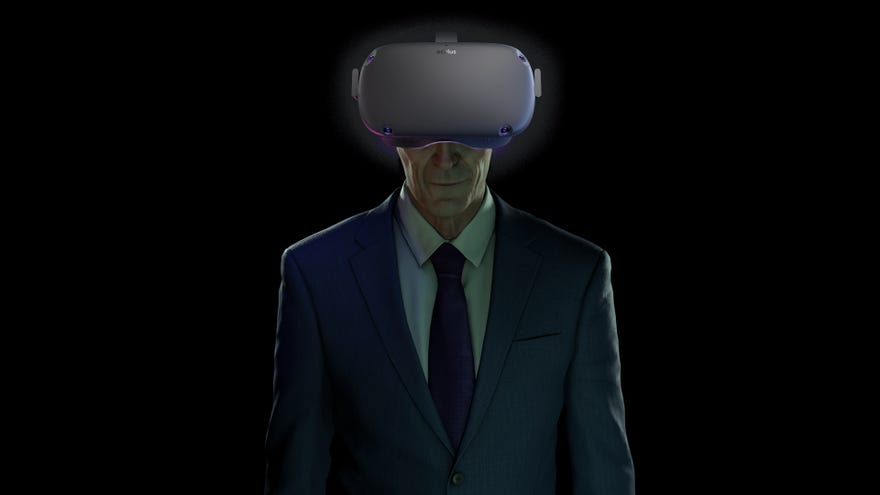
Half-Life: Alyxcan be played on practically every PC VR headset under the sun, from the super expensive Valve Index to entry-level Windows Mixed Reality headsets. However, you can also play it on the standaloneOculus Questwhen you take advantage of Oculus Link, which connects your Quest to your PC like an ordinary Rift headset. In this article, I’ll walk you through exactly how to playHalf-Life: Alyxon the Oculus Quest, as well as exactly what you need to get started.
How to play Half-Life: Alyx on Oculus Quest
Step 1: Check you have a compatible graphics cardFirst things first, you need to make sure your graphics card actually supports Oculus Link. It’s only in beta at the moment, and Oculus are still the process of testing various graphics cards to make sure they’ll provide a good enough experience. At launch, for example, it didn’t support any type of AMD GPU, but thankfully that’s been rectified in the last couple of months.
Step 2: Make sure your PC meets the minimum requirementsYou’ll also need to make sure your PC meets the minimum PC requirements for the Oculus Rift and Rift S headsets. These need at least an Intel Core i5-4590 / AMD Ryzen 5 1500X CPU or above, as well as 8GB of RAM, Windows 10 and at least one USB3 port. However, if you’re using your Oculus Quest for Half-Life: Alyx, then you’ll also need to meetHalf-Life: Alyx’s PC requirements, which I’ve listed below:
Half-Life: Alyx minimum PC requirements:OS:Windows 10CPU:Intel Core i5-7500 / AMD Ryzen 5 1600RAM:12GB RAMGPU:Nvidia GeForce GTX 1060 (6GB) / AMD Radeon RX 580 (8GB)
Watch on YouTube
Watch on YouTube

Step 3: Get a high-quality USB-C to USB3 cableIn order to use Oculus Link, you need a fast USBC to USB3 cable to connect your Quest to your PC. Sadly, the USB-C to USB cable that comes with the Quest so you can keep it charged is only USB2, so it won’t be good enough to deliver all that VR video and audio goodness from your PC.
Naturally, Oculus have madetheir own special cablefor the occasion, but it’s very expensive and is currently out of stock here in the UK.
Fortunately, Oculus have approved other cables from Anker that are a lot cheaper. US buyers can get one fromAmazon US, while UK buyers can get one fromAmazon UKfor £12. This is also the cable I bought myself to test Oculus Quest on PC, and I haven’t had any problems with it so far. Just make sure you buy the 10ft / 3m cable to make sure it’s long enough.
Next, you’ll need to choose where you want to download all those juicy VR games. Fortunately, you can specify where you want these to be installed this time (unlike the main Oculus app).

Once you’ve done that, you’ll be asked to add a payment method if you wish, but you can always skip this and do it later if you prefer. Next, select the Quest icon (as in the picture above) to start its PC setup process.
Step 5: Connect your Quest to your PCYou’ll then be asked to plug your USB-C cable into your Quest headset, before sticking the USB3 end into a USB3 port on your PC. If you have trouble getting your PC to recognise the Quest as a USB device, try plugging it into a different USB3 port. Ifthatdoesn’t work either, then turn your Quest off while it’s plugged in and switch it back on again. Your PC should now recognise the USB connection and let you continue the setup process.
Step 6: Put on your Oculus QuestYou’ll need to finish setting up your Oculus Quest from inside your headset for this next step, so have a read of what you need to do before sticking the thing on your head. First, you may be asked to download the Quest’s Android or iOS app if this is your first time setting up the Quest and link your Quest to your home Wi-Fi network. Once that’s done, you’ll then need to define your play area and set up your Quest Guardian, which will warn you when you’re about to crash into your surrounding furniture. You’ll then be plonked into Oculus Quest’s home menu. Now it’s time to take off your headset.
Step 7: Get to Steam and launch Half-Life: AlyxNow your Oculus Quest has been set up on your PC, it’s time to remove your headset and go back to your desktop. To play games from Steam, you’ll need to allow the Quest to play non-Oculus games. To do this, click the Settings option in the Oculus PC app on the left-hand side, and go to the General Tab. Then, click the Unknown Sources button, as shown below.

With that done, open SteamVR on your desktop. With any luck, it should recognise the Quest and your two Touch controllers like so:

Launch Half-Life: Alyx from your PC, then put on your headset (although not without reading this next bit first!). Once you’re back in the Oculus Quest home menu, there should be a little button on the menu in front of you saying ‘Enable Oculus Link’. Click that using your Quest controllers and voila, you should now be playing Half-Life: Alyx. Enjoy!
Alternatively, should you want to use your Oculus Quest to just play Rift or Rift S games that you’ve bought through Oculus, then there’s no need to run SteamVR. Instead, just click that same ‘Enable Oculus Link’ button and you’ll be taken to the Rift / Rift S home menu instead. From there, you can then browse your Rift / Rift S game library, and use the Rift / Rift S store to buy more of them (because the Rift store isn’t the same one as the Quest’s, unfortunately).
