HomeGuidesMinecraft
How to change gamemode in MinecraftHaving trouble switching your game mode in Minecraft? Here’s what you need to know
Having trouble switching your game mode in Minecraft? Here’s what you need to know
Want to change your gamemode in Minecraft?There are four different gamemodes to choose from inMinecraft: Survival, Creative, Adventure, and Spectator. Each one offers a very different experience to the rest, and help to tailor each Minecraft game to your needs and desires.
If you’re running into issues trying to change your gamemode in Minecraft, fear not. Below we’ll explain how to change gamemode either using the gamemode switcher tool or using commands, and we’ll also show you how you can (temporarily) enable cheats in your Survival game so you can change your gamemode there as well.
The Best Minecraft ShadersWatch on YouTube
The Best Minecraft Shaders

How do you change your gamemode in Minecraft?
Minecraft gamemode switcher
The quickest way to change your gamemode in Minecraft is with the gamemode switcher, which was added to Minecraft in 2020. To bring up the gamemode switcher, hold down F3, and tap F4. You’ll see four icons appear in the centre of the screen.
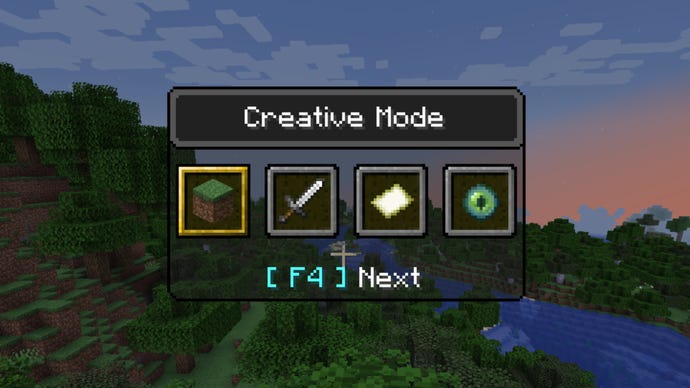
Continue to tap F4 while holding F3 to cycle between the four gamemodes available. When your desired gamemode is selected, release F3 to change your gamemode!
You can also quickly use the shortcut F3+F4 to instantly switch your gamemode back to the last gamemode you were previously on.
Minecraft gamemode command
The other way to change your gamemode in Minecraft is using the gamemode command. To do this, open up the chat box and type:
Replace [mode] with one of the four options: creative, survival, adventure, or spectator. Then hit Enter to change your gamemode.
You can use this same command to change another player’s gamemode if you’re playing on a multiplayerMinecraft serveras an admin. For more information on this and other commands, check out ourMinecraft commands and cheatsguide.
How to change gamemode in a Survival world
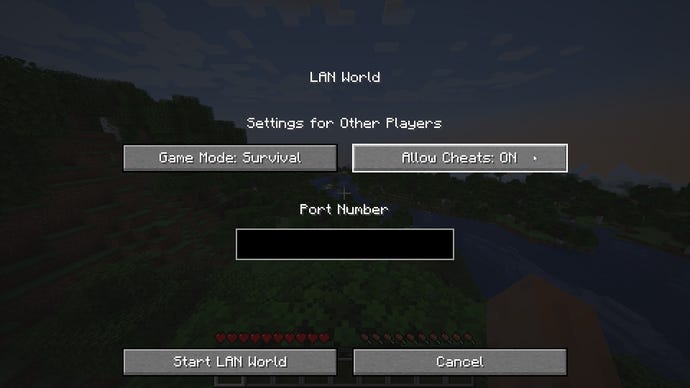
And if you attempt to use the “/gamemode” command, the command won’t be recognised.
Then return to your game, and you’ll be able to use either of the above methods (switcher or command) to change your gamemode. However, your new cheat privileges will only last for that session. If you quit the game and then load it again, you’ll be back to Survival mode and unable to change it again unless you repeat the process of opening the game up as a LAN server.
What are the different Minecraft gamemodes?
There are four gamemodes to choose from in Minecraft, and here we’ll explain each one so you know which gamemode you should pick depending on your needs.
Survival Mode
The default Minecraft experience is Survival Mode. While in Survival Mode you must maintain your health and hunger, and you must find or craft whatever you need using limited resources. You are also vulnerable to damage from enemies and the environment.
Creative Mode
While in Creative Mode you are invulnerable and cannot be attacked or damaged. You can also fly and use commands, and can access every item and block in the game. Creative Mode is therefore perfect for building, planning, and exploring.
Adventure Mode
Spectator Mode
Spectator Mode, as you might have guessed, is ideal for spectating other players. While in Spectator Mode you are invisible to others and can fly around like you can in Creative Mode - but you cannot interact with the world in any way. No placing or breaking blocks, no damaging or interacting withMinecraft mobs, players, or items. You’re there to observe, nothing more.
That’s everything we know about gamemodes and how to change between them in Minecraft. If you’re preparing to start a new game then be sure to make it as special as possible with our guides on thebest Minecraft seedsandbest Minecraft shaders! For Survival players, check out our handy primer onwhere to find Diamonds in Minecraft. Creative Mode players might also be interested in our guides onMinecraft build ideasandMinecraft house ideas.
