HomeGuidesHalo Infinite
Halo Infinite: best controller settings on PCOur recommended controller setup to optimise your performance in Halo Infinite’s multiplayer matches
Our recommended controller setup to optimise your performance in Halo Infinite’s multiplayer matches
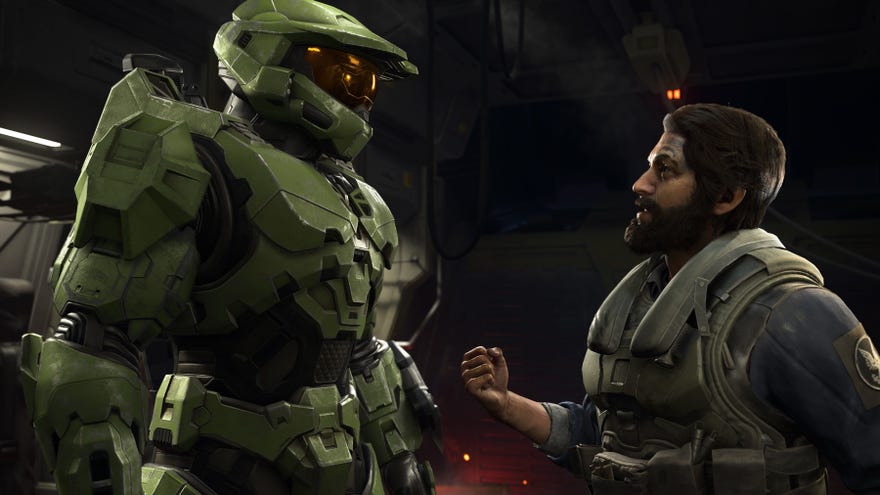
Though Halo Infinite can be enjoyed on either PC or Xbox, we know that plenty of our readers will want to play this one using a controller regardless of which platform they’re playing on. In this guide to the best controller settings in Halo Infinite on PC, we take you through our recommendations for the best adjustments to make when choosing your settings.
Halo Infinite - Multiplayer Season One Launch TrailerWatch on YouTube
Halo Infinite - Multiplayer Season One Launch Trailer

Best Halo Infinite controller settings: Button Layout
While there are a huge number of individual controller settings you can tweak in Halo Infinite, you can also choose from a series of preset Button Layouts. These basically let you switch out what actions are tied to the bumper buttons, which can be a lifesaver if you’re used to playing a certain way.
The main downside of Bumper Jumper is that it situates reload on the B button, which can feel counterintuitive to experiencedFPSplayers used to hitting X for that function. Luckily, if you’re not able to adjust to this (or indeed struggle to get on with any of the presets), Halo Infinite also offers you the opportunity to individually map the button layout. We’d recommend sticking with Bumper Jumper’s basic layout but then, if you feel the need, swapping the functions of B and X, so that reload returns to the X button and B becomes the equipment button instead.
Best Halo Infinite controller settings: optimised aiming
Long-time FPS fans will often recommend that youturn controller vibration offfor multiplayer PvP, since it doesn’t really add anything to make up for its potential to mess up your aim.
Speaking of improving your aim, if you feel like there’s something a bit imprecise, try going to theLook Thumbsticksection of your controller layout options and turning any two of the three settings (Center Deadzone, Max InputThreshold, Axial Deadzone) down very low while leaving the other one in the higher default range. You may need to play around with the exact settings to find the sweet spot that works for you, but this solution seems to be working for a lot of players.
One final tip for optimised aiming:Look Acceleration defaults to 2, but you can bump it up to 3for swifter camera movement without sacrificing the accuracy of your aim. Just make sure that Horizontal and Vertical Look Sensitivity settings match one another, otherwise it can get a bit disorienting.
Best Halo Infinite controller settings: other adjustments
While adjusting your controller settings, considertoggling the Hold to Crouch option on. You’ll likely find that you have an easier time dodging and strafing this way, which can make a huge difference when you’re caught up in a firefight.
Finally, a word specifically to players on PC: it’s quite important that your mouse and keyboard aren’t sending signals to the game while you play, since it can cause lags while your PC deals with input confusion. If you can do so, consider just unplugging your mouse and keyboard entirely while you play Halo Infinite on a controller.
Those are the best controller settings we’ve discovered for playing Halo Infinite on PC, but if we come up with any more tips and tricks to help you make the most of your time in multiplayer, we’ll be sure to add them here. In the meantime, check out our guides toprogressing through Halo Infinite’s Battle Passandadvancing your tier in Ranked Arena matches.
