HomeGuidesCounter-Strike: Global Offensive
CSGO best launch options for FPS in 2023Boost your FPS for free with these CSGO launch options
Boost your FPS for free with these CSGO launch options
Image credit:Valve
Image credit:Valve
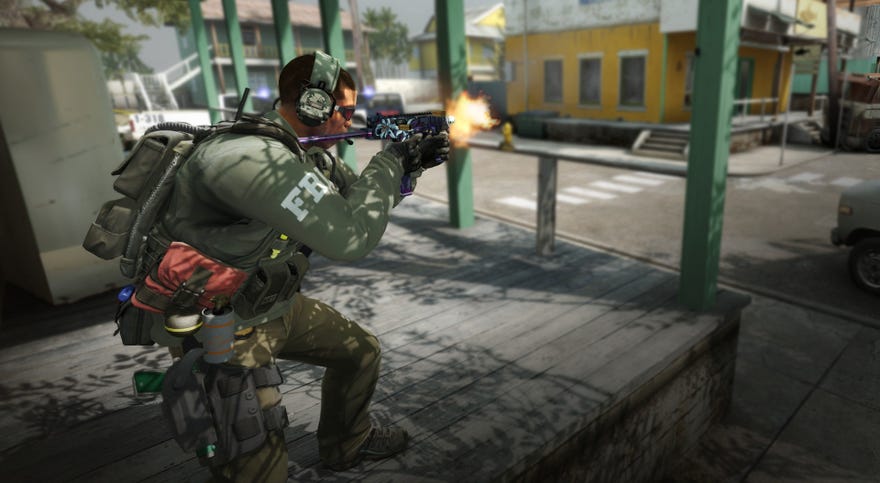
Looking for the best CS:GO launch options to boost your FPS?If you’re looking for 2023 to be your year inCounter-Strike: Global Offensive, then you should spend at least a few minutes updating your launch options to make sure you have the best options available for maximising performance and FPS.
If you’re new to launch options, don’t worry. They’re extremely simple to use, and below we’ll let you know exactly how to use launch options to give yourself a potentially huge performance boost for free in CS:GO. Updated for 2023, this guide will walk you through the best launch options to use and how to set them up so you never have to worry about performance drops in the heat of battle ever again.
The 14 Biggest Games Coming To PC In 2023These are the 14 biggest games coming to PC in 2023.Watch on YouTube
The 14 Biggest Games Coming To PC In 2023

CSGO best launch options for FPS
If you’re looking to achieve the maximum possible FPS, here are the best launch options in CS:GO that you can use:
If you need help on how to set these launch options, then just check the below section onhow to set launch options for CS:GO. Remember to separate every launch option with a space! If you want a shortcut for pasting all of these into your launch options at once, then just copy the following:
Here’s what each of these CS:GO launch options does for you, and why they’re considered the best launch options for improving your FPS.
+fps_max 0
This launch option sets the maximum available FPS for the game. Setting the desired value to 0, as we’ve done here, is shorthand for removing the limit entirely, allowing CS:GO to run at the maximum possible FPS.
-tickrate 128
This launch option sets the tickrate of any offline server that the user runs. So while this won’t have any effect on regular matches, it will ensure a high tickrate for any bot matches or other privately run games.
-high
This launch option forces CS:GO to run at high priority on your machine, giving it priority over other processes.Warning:if you experience any issues, then consider removing this launch setting before any others, as this option doesn’t always play well with everyone’s setup.
-novid
-nojoy
+violence_hblood 0
+mat_disable_fancy_blending 1
This launch option disables “fancy blending”, a setting which blends together textures to make the game look nicer. Disabling this setting can significantly improve performance and FPS on some machines.
+r_dynamic 0
This launch option disables dynamic lighting in CS:GO, which can give users a minor boost to their FPS.
-softparticlesdefaultoff
+cl_forcepreload 1
This launch option forces the game to preload all assets (textures, graphics, and so on) before you enter a server. You may find that it takes longer to load into a server, but you should gain an FPS boost while playing.
-limitvsconst
This launch option limits the number of vertex shaders to 256, which can improve performance in CS:GO particularly for machines with older GPUs.
+mat_queue_mode 2
This launch option determines the threading mode for CS:GO. Setting this option to 2, as we’ve done here, forces the game to use multi-threading, which allows it to handle more computations at once, thus increasing performance.
-forcenovsync
-disable_d3d9ex
This launch option disables DirectX 9Ex, which can situationally improve your FPS on certain machines.Warning:if you experience any issues, then consider removing this launch setting before any others, as this option doesn’t always play well with everyone’s setup.
-r_emulate_g
This launch option enables OpenGL emulation, which can boost performance in CS:GO particularly for machines with older GPUs.Warning:if you experience any issues, then consider removing this launch setting before any others, as this option doesn’t always play well with everyone’s setup.
Image credit:Rock Paper Shotgun/Valve
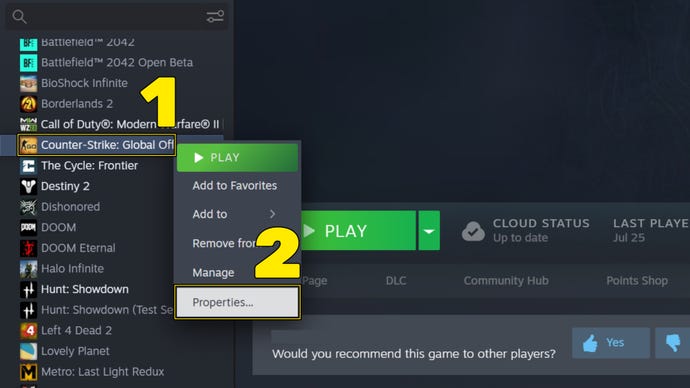
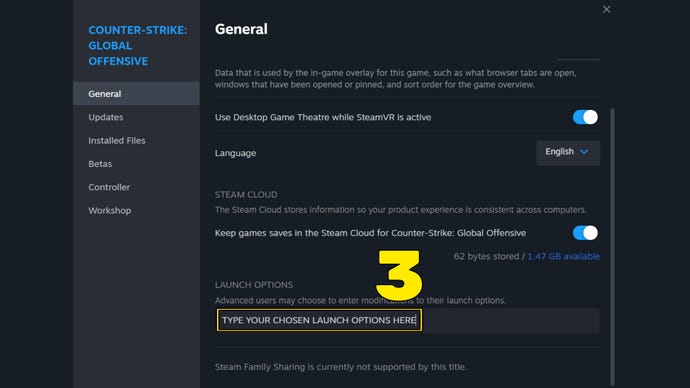
How to set launch options for CSGO
Follow these simple steps to learn how to set launch options for CSGO or any other game on Steam:
That wraps up our primer on how to use launch options to boost performance in CS:GO. If you’re looking to push your game even more, look no further than ourCS:GO best settingsguide! Alternatively, take a look at our guide onhow to open the CS:GO consolefor more information on using similar commands to the above.
