HomeGuidesCounter-Strike 2
Counter-Strike 2 settings guide: Best CS2 settings for FPSGive yourself the advantage with our ultimate CS2 settings guide
Give yourself the advantage with our ultimate CS2 settings guide
Image credit:Rock Paper Shotgun/Valve
Image credit:Rock Paper Shotgun/Valve
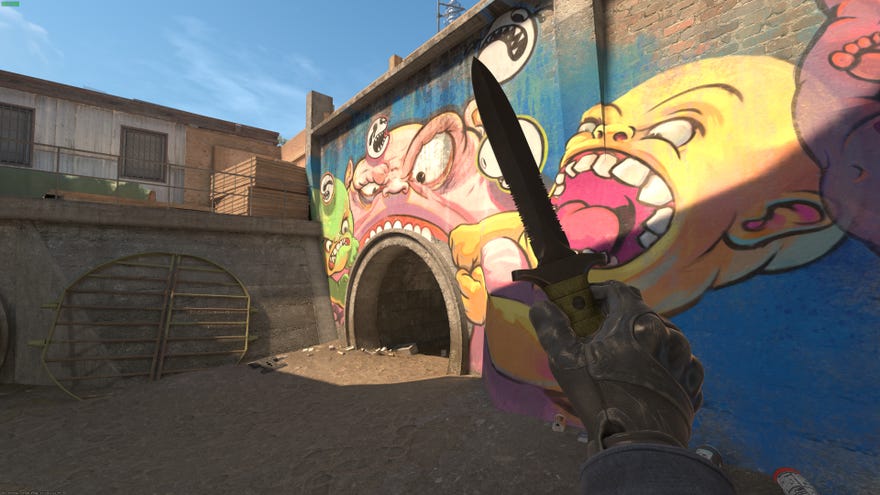
What are the very best Counter-Strike 2 settings?Fine-tuning your settings is a lengthy process in any competitive game, and withCounter-Strike 2now released and free-to-play, tens of thousands of players are now busy trawling through the game’s settings menus trying to make sense of every last option in the game.
We’ve even got some more advanced tips onhow to boost your FPS in CS2both in and out of game, as well as handy instructions on things like improving your radar visibility, setting up your audio correctly, and more. So let’s get started!
In our CS2 settings guide:
Counter-Strike 2 - Launch TrailerWatch on YouTube
Counter-Strike 2 - Launch Trailer

Best Counter-Strike 2 video settings
Adopting the best video settings for CS2 is extremely important if you want the game to run smoothly at a high frame rate. Not only that, but you can gain a real advantage in combat with the right video settings options, allowing you to see more easily through smokes and the like.
These are the best CS2 video settings for maximum FPS:
The key to getting the best CS2 video settings is to set most things to the lowest setting butset Global Shadow Quality and Ambient Occlusion to High. This is very important because these settings both allow you to see enemy player shadows, which can give you a very serious advantage when peeking or holding corners in Counter-Strike 2.
Best Counter-Strike 2 game settings
Image credit:Valve
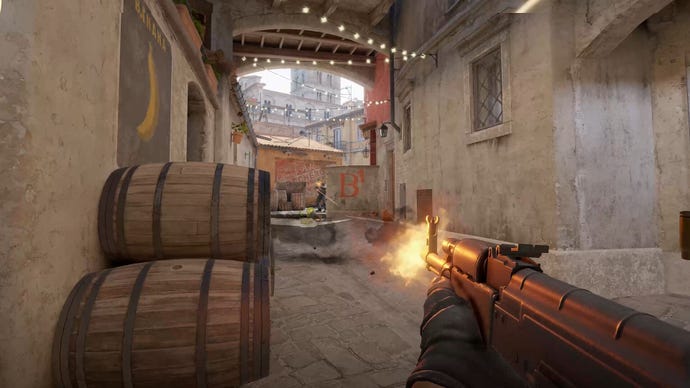
If you want to give yourself the greatest advantage in Counter-Strike 2, you need to look not only at the video settings for max FPS, but also at your game settings to make sure everything is geared up ready to help you succeed in the heat of battle. Here are our recommendations for the best CS2 Game settings:
Game
HUD
Team
Communication
Spectator / Scoreboard
Item
Radar / Tablet
You can also check out ourbest Counter-Strike 2 crosshair settingsguide if you want to customise your reticule to give you the greatest advantage in matches.
Counter-Strike 2 pro settings
Image credit:Valve
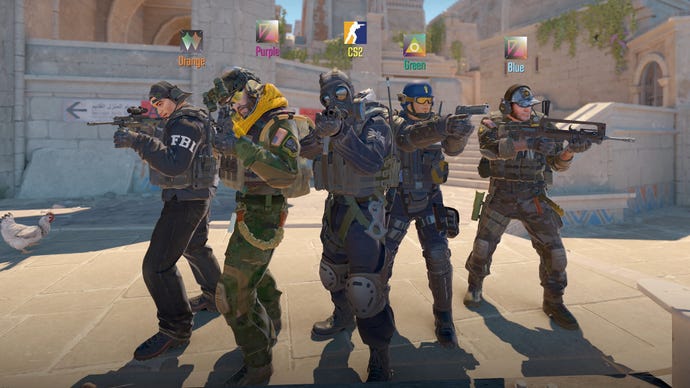
CS2 pro settings list:
If you’re unsure what any of these stats and values mean, like eDPI and HZ, then just keep reading. We’re about to explain everything you need to know about giving yourself the very best Counter-Strike 2 settings possible.
Best CS2 mouse settings
Image credit:Valve
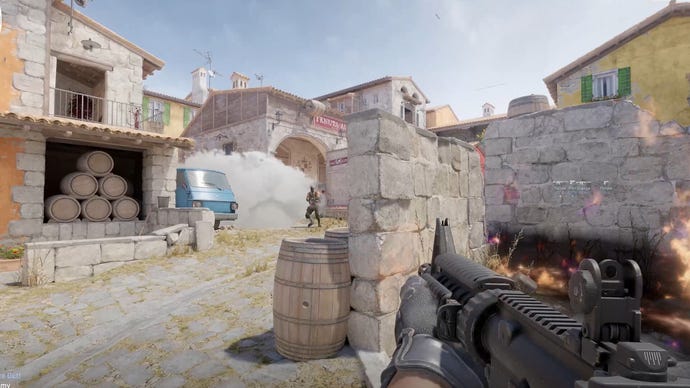
If you want the very best mouse settings for Counter-Strike 2, you’ll need to make some changes both in-game and in Windows itself. Assuming you already have the hardware sorted with a goodgaming mouse, below we’ll walk you through everything from Mouse Acceleration to choosing the right sensitivity and DPI for you, so you can have the easiest possible time clicking on enemies in CS2.
We’d recommend keeping all the settings in the Keyboard & Mouse Settings section of CS2’s settings menu at their default values, except for the Mouse Sensitivity value, which you should change to whatever you prefer. For reference, here are the default Keyboard & Mouse Settings in Counter-Strike 2:
What is the best Sensitivity?
Sensitivity is a very personal thing, particularly in a game like Counter-Strike 2. There is no universal best CS2 sensitivity for everyone, but to find the best sensitivity for you, the only thing you can do is play around with a variety of different sensitivities until you find something that feels like a natural fit with your muscle-memorised mouse movements.
Turn off Mouse Acceleration in Windows
Mouse Acceleration subtly alters the way your cursor moves depending on how fast or slow you move your mouse. Most Counter-Strike players turn this setting off, and for good reason - they don’t want anything messing with the flick-shots and precise cursor placements you need to win any round in CS2. Counter-Strike 2 doesn’t have a built-in Mouse Acceleration setting like CS:GO had. But Windows has its own built-in Mouse Acceleration, and if you want the best mouse settings for most competitive shooters, you shouldturn this setting off in Windowsbefore playing Counter-Strike 2.
To disable Mouse Acceleration in Windows for CS2:
DPI and eDPI: What’s the difference?
Every mouse has a DPI setting. DPI stands for “Dots Per Inch”, and it’s the built-in sensitivity of your mouse itself. The higher the DPI, the faster your cursor moves, and the less you have to move your mouse. The trade-off is that high sensitivity can make it harder to do small, precise movements.
Mouse Polling Rate (HZ) explained
Another term you might hear in talks about the best CS2 mouse settings is your mouse’s Polling Rate or HZ. The Polling Rate is measured in Hertz (HZ), and determines how often your mouse hardware sends data about the cursor position to your PC.
Most gaming mice have various Polling Rate options to choose from, but in nearly every case you should choose the highest possible polling rate. 1000HZ is a great option, meaning your mouse updates its cursor position every millisecond, which is very fast indeed.
Best CS2 resolution and aspect ratio
Image credit:Rock Paper Shotgun/Valve
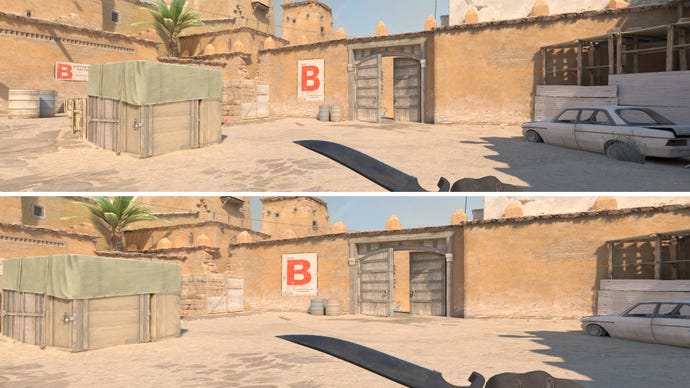
Picking the best combination of resolution and aspect ratio for Counter-Strike 2 is largely down to personal preference. Many professional Counter-Strike players prefer to play at what’s called a “stretched” resolution, which means setting the aspect ratio to 4:3 while playing on a 16:9 or 16:10 monitor, and setting the Scaling Mode to “Stretched”.
This results in a horizontally stretched appearance, which has the benefit of zooming the screen further into the centre (which is where the action tends to take place), and increasing the size of enemies' hitboxes in that central region to make shooting them easier.
There are pros and cons to any aspect ratio and resolution option though, and it’s up to you to decide which one you prefer. We’ve laid out the main advantages and disadvantages below:
For the average Counter-Strike 2 player, we’d recommend you start at 1920x1080 resolution (or whatever is the native resolution of your monitor), and 16:9 aspect ratio.
Other important CS2 settings
Image credit:Valve
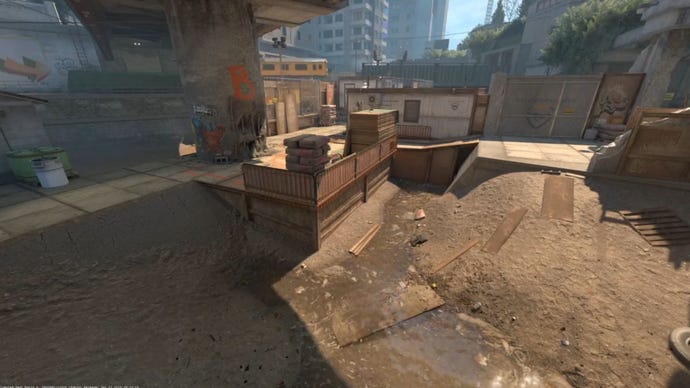
Here are a few more settings you may want to configure before starting your journey into the highly competitive world of Counter-Strike 2.
Refresh Rate
Brightness
Your brightness setting in CS2 is another option wherethere is no universally accepted “best” setting. As long as you can clearly see everything you need to see in both dark and light areas, then you should opt for whatever brightness is most comfortable for you.
Audio
Counter-Strike 2 has a few brand new audio settings to play around with, including EQ Profile, L/R Isolation, and Perspective Correction. Here’s our take on each of these new audio settings:
We’d also recommend turning off all music except possibly the “Ten Second Warning” audio in Counter-Strike 2, so that no sudden bursts of mid-round music distract you from your shooting.
Windows Graphics settings for CS2
Image credit:Rock Paper Shotgun
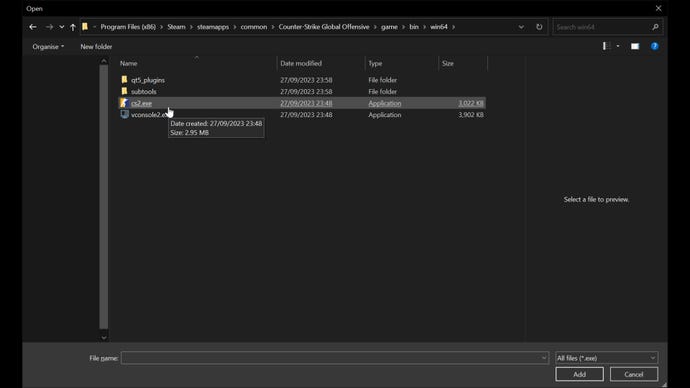
To make sure your machine is running Counter-Strike 2 at the maximum possible performance, here’s a little trick you can do inside Windows:
Steam settings for CS2
Image credit:Rock Paper Shotgun/Valve
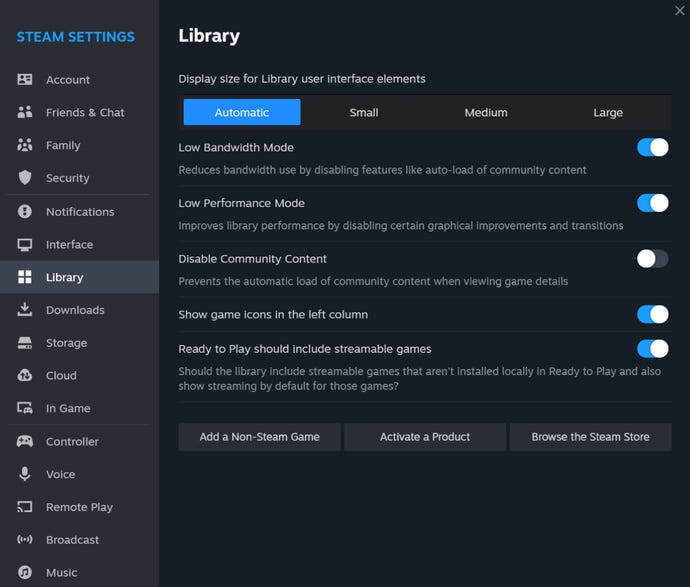
This isn’t exclusive to Counter-Strike 2, but there are a few easy settings that you can change within Steam itself to ensure that it isn’t taking up too much power in the background while you play CS2.
That wraps up just about everything you could ever want to know about perfecting your CS2 video and game settings. Now why not check out our guides on the bestCS2 console commandsfor FPS, and on how to create your ownjump throw bind in CS2?
